Pro
The lookup-and-reply mail can leave your desk before you open it.
When a customer asks where an order is, what something costs, or for a copy of an invoice, that is the kind of mail Pro is built for. Your agent researches the answer and emails you a draft in your own inbox. You read it and forward it to the customer. That is the default: no login and no mailbox connection required to start. Keep the first ones as drafts while you learn the voice. When you trust the answers, turn on auto-approve and read what went out in Sent.
Pro is for any professional at a business of any size, whether your inbox gets thirty of these a week or three hundred.
Setting it up, step by step
-
Forwarding and rules, where you expect it
The rule lives in settings, built the way a rule in Gmail or Outlook is built. Nothing is on until you make it.
Tap the screenshot to open it full size.
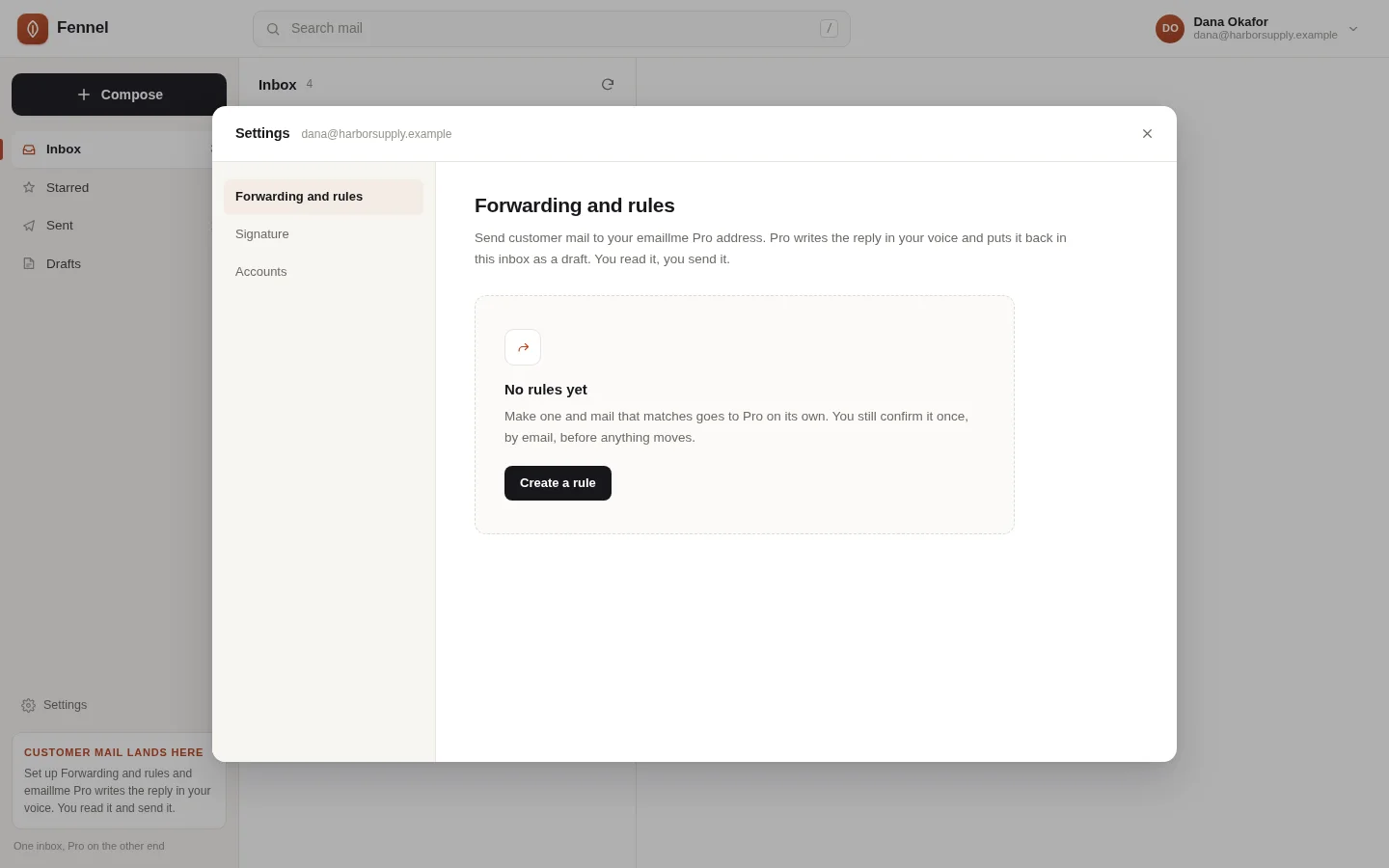
Empty to start. Yours to fill in. -
Name the address, name the destination
Mail that arrives at your orders address at Harbor Supply, or from a customer, goes to your Pro address. You choose whether a copy stays in the inbox, so the thread still looks complete when you go back to it.
Tap the screenshot to open it full size.
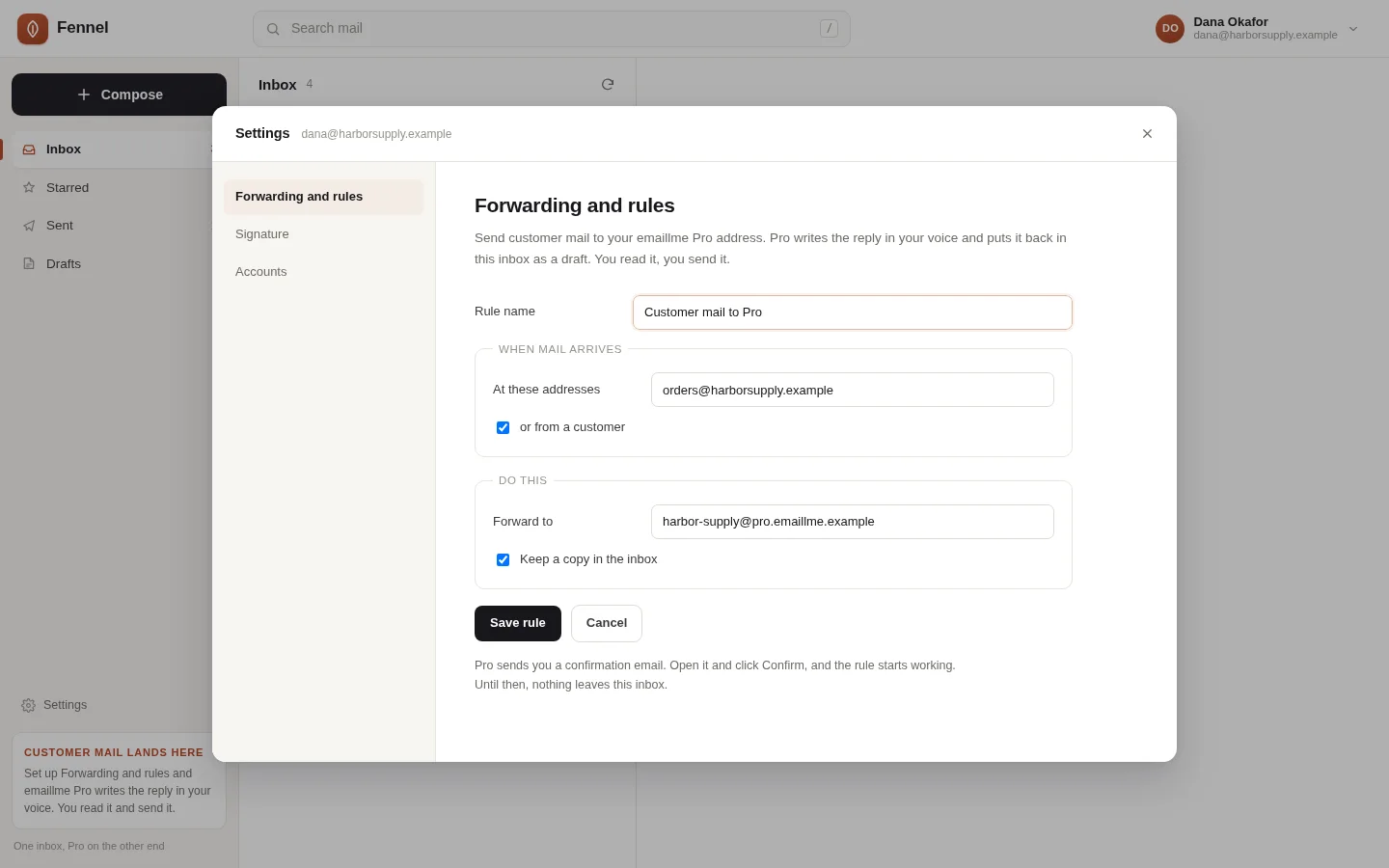
The addresses filled in, the copy-left-in-inbox option ticked. -
Nothing forwards until you confirm it
Saving sends a confirmation email. The rule sits there pending, and the Confirm button inside that email is what turns it on. Someone who guesses your settings screen changes nothing.
Tap the screenshot to open it full size.
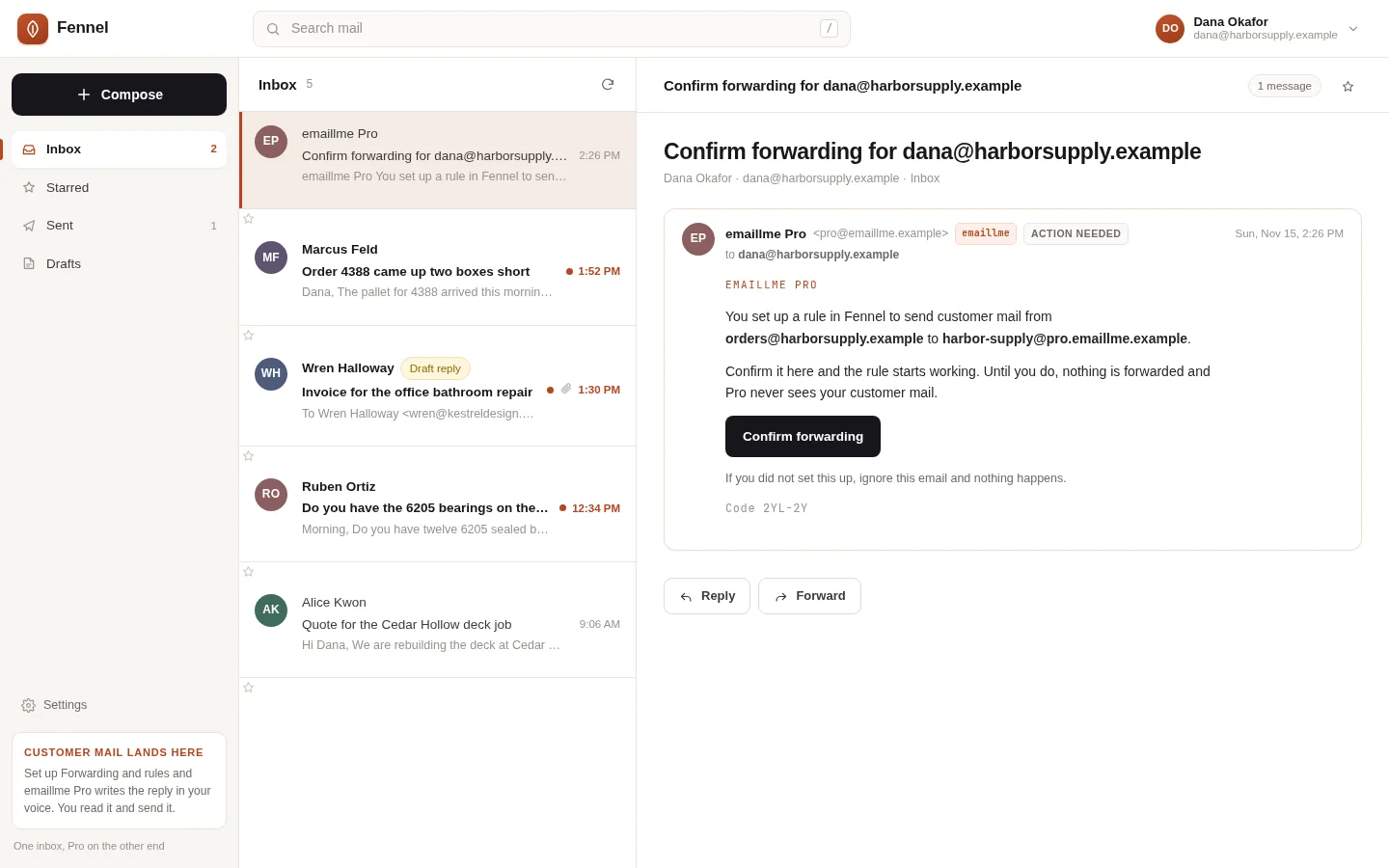
One click in the email, and only there. -
Active means active
The rule shows a green Active badge once it is confirmed. From then on, mail that matches it is forwarded without anyone touching it.
Tap the screenshot to open it full size.
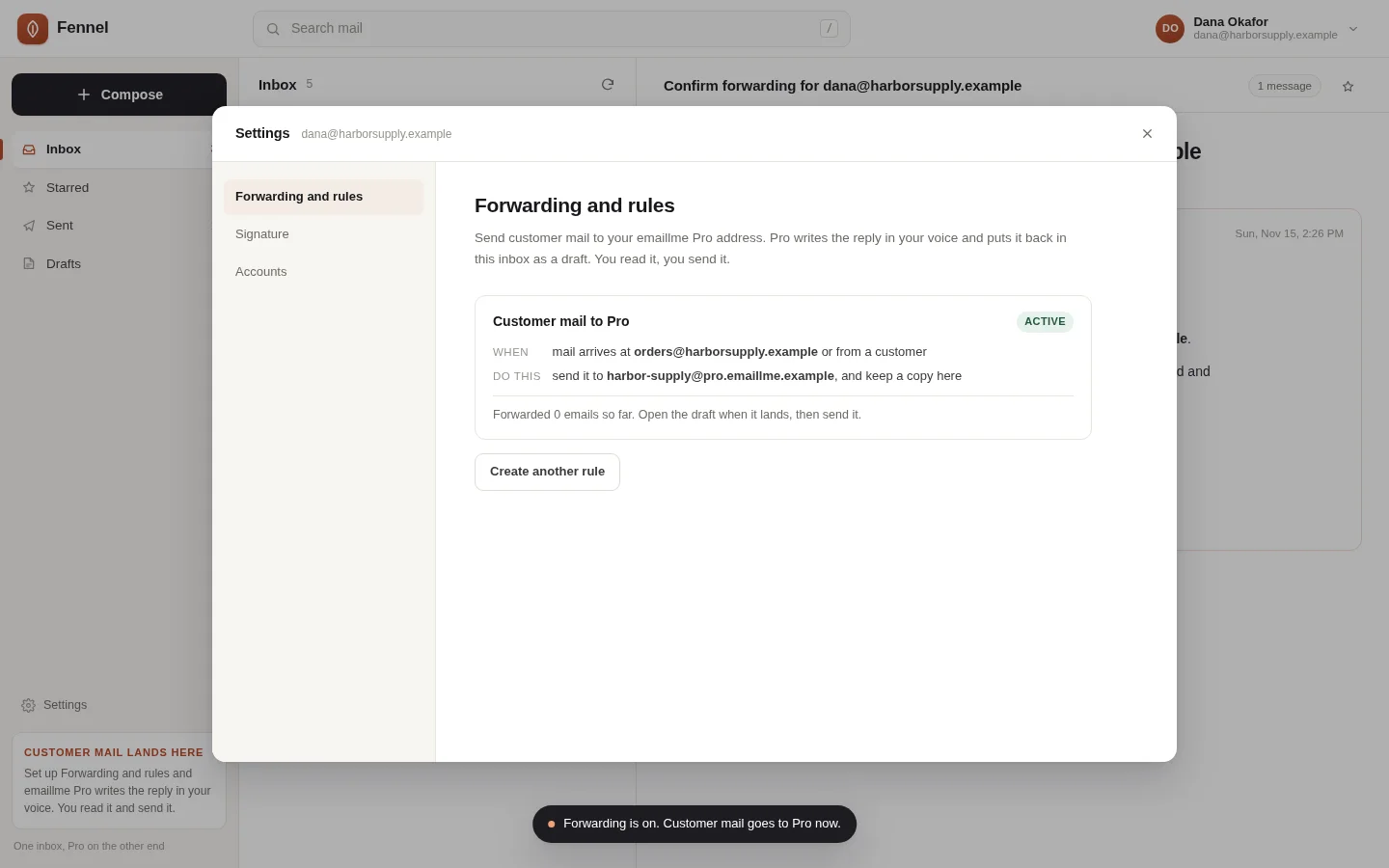
Green Active badge on the rule.
The first customer email after that
-
A customer writes in
Priya at Northgate Cafe wants to know about an order. It is an ordinary email, one line of context and one question.
Tap the screenshot to open it full size.
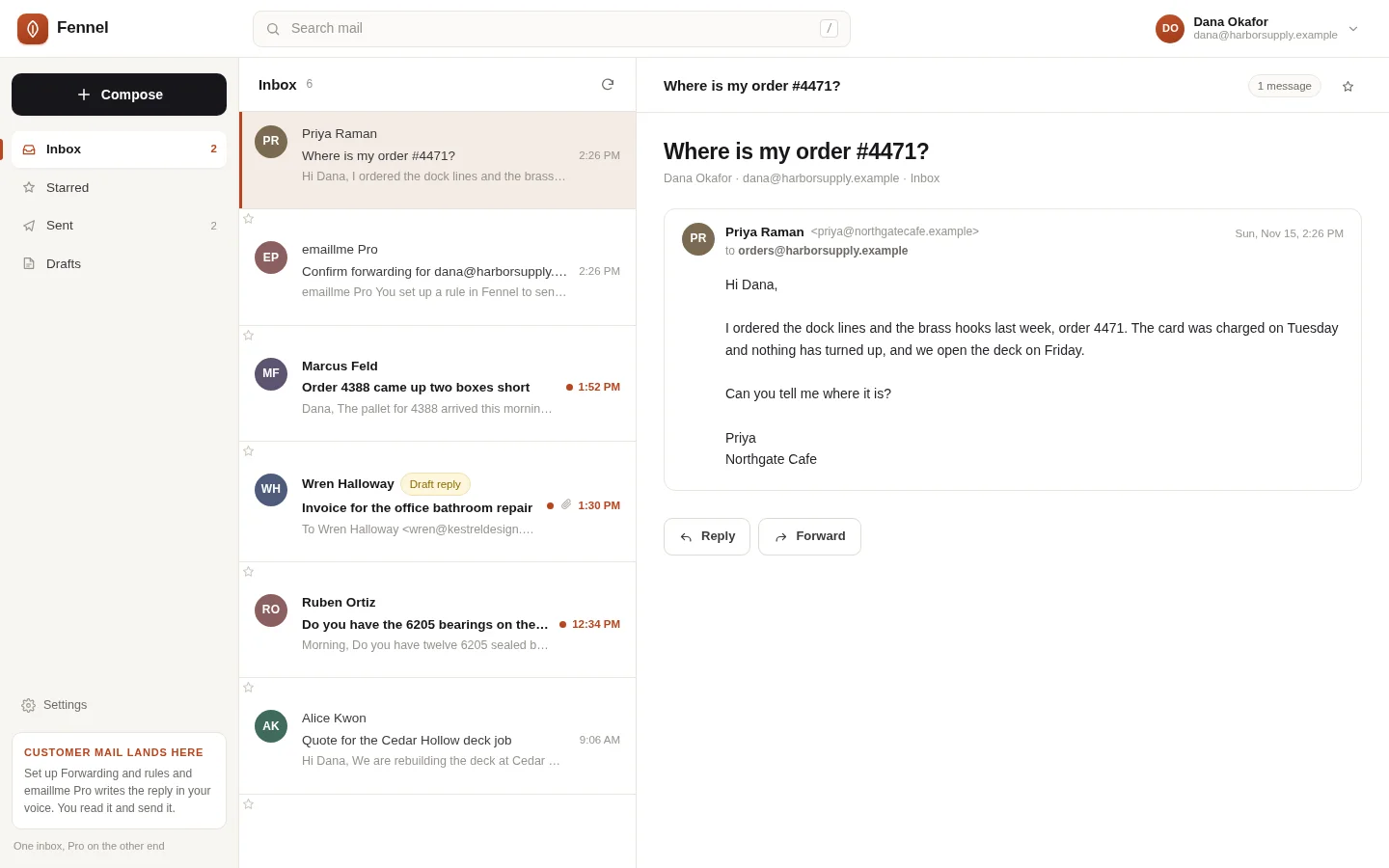
The customer email, sitting in the inbox like any other. -
It forwards itself, and the forward is visible
The email is forwarded to your Pro address and the forward shows up in Sent with a Forwarded marker, so you can open it later if someone asks what happened.
Tap the screenshot to open it full size.
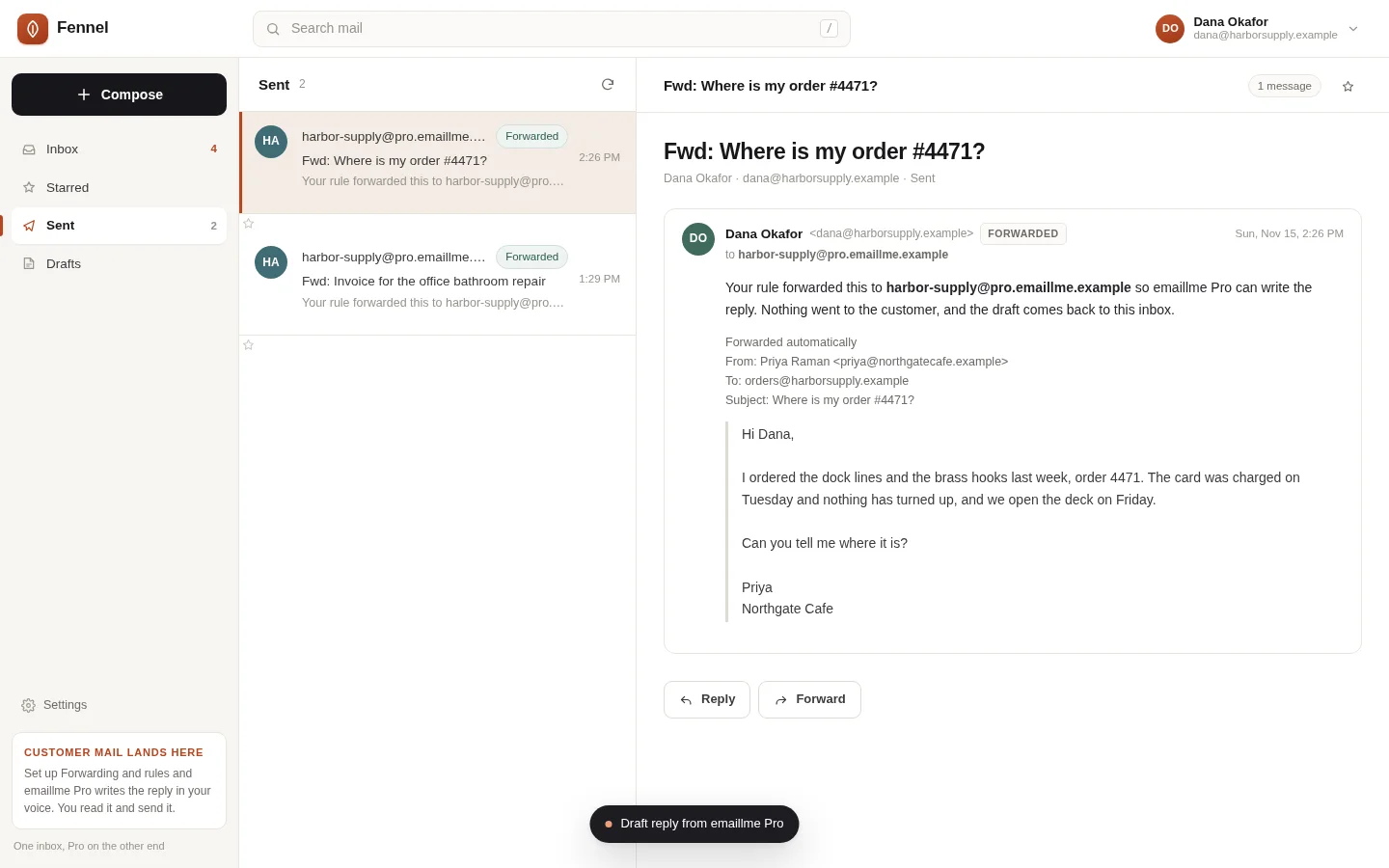
The automatic forward, tagged, in Sent. -
The draft arrives in your inbox a few seconds later
emaillme emails the draft to your own address. It has the customer's address at the top, the answer in the middle, the customer's email quoted underneath, and a small footer you can delete before you forward.
Tap the screenshot to open it full size.
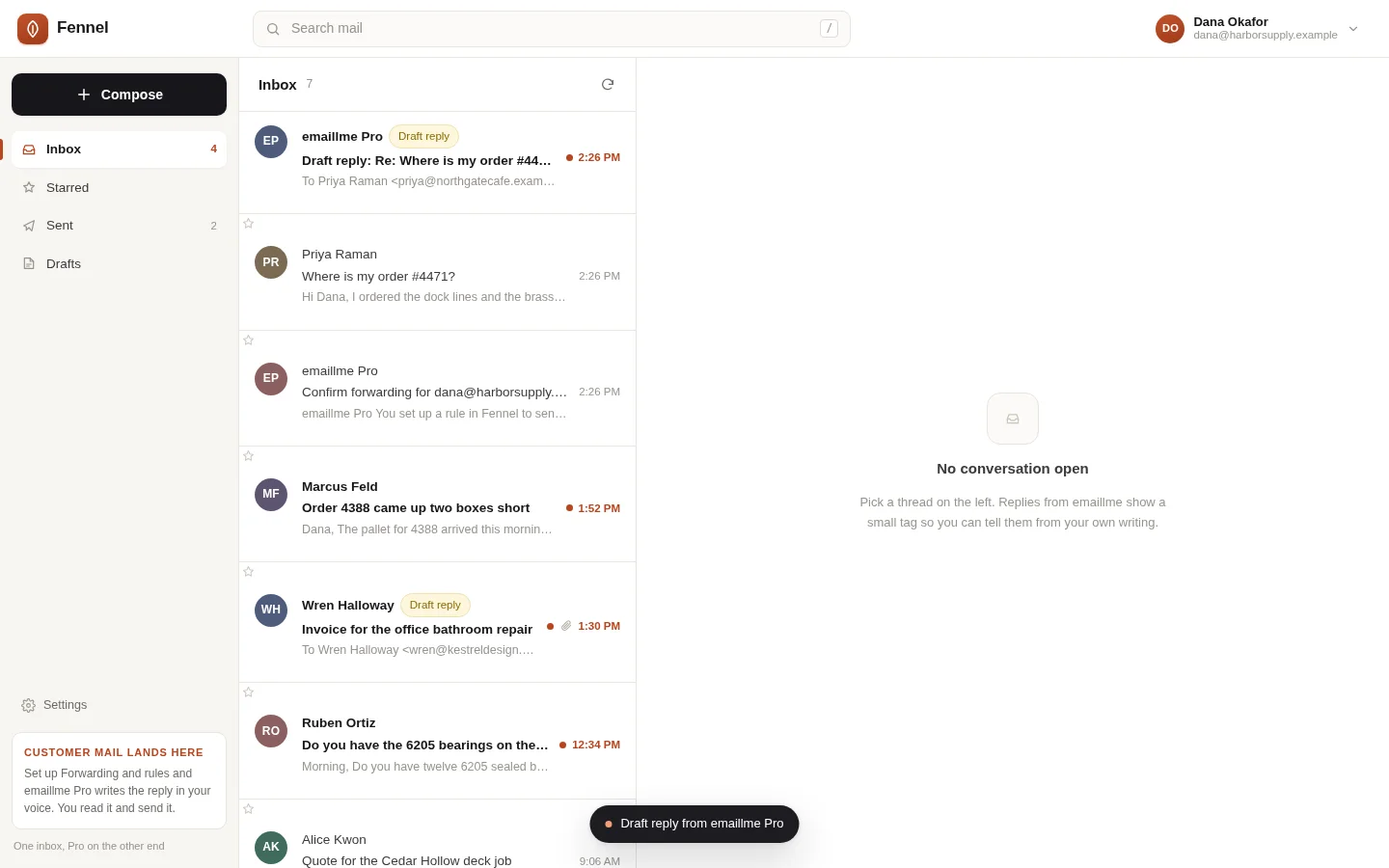
Unread, unopened, waiting for a yes. -
You forward the draft to the customer
Forward from your inbox. The composer opens with the body copied across and the footer stripped. Put the customer's address in To, add a line if you want to, and send. You stay the person who hits Send.
Tap the screenshot to open it full size.
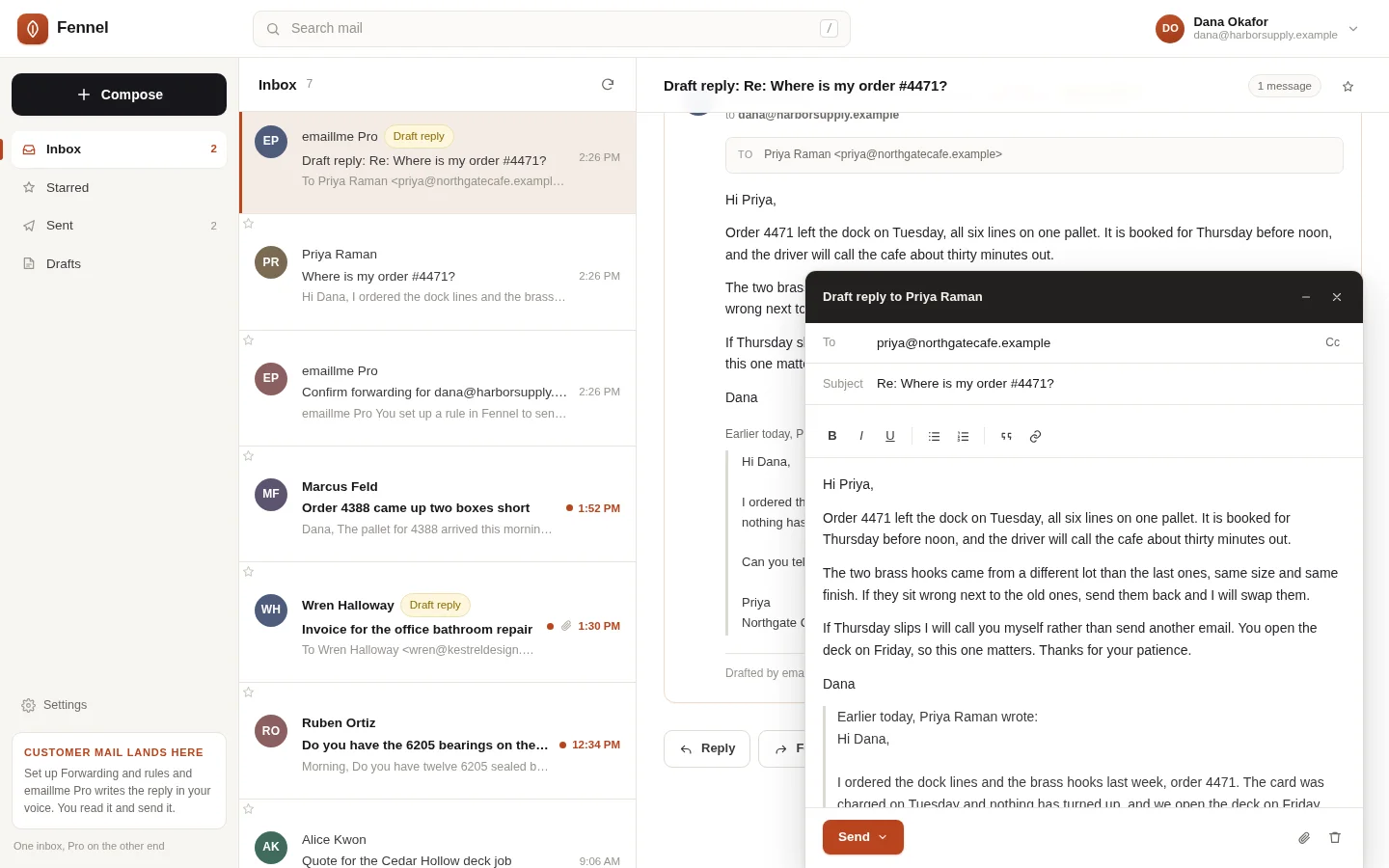
Draft body, address filled in, one sentence of your own. -
The customer gets mail from you
You forwarded the draft from your own address at Harbor Supply, so the customer sees the same sender they wrote to.
Tap the screenshot to open it full size.
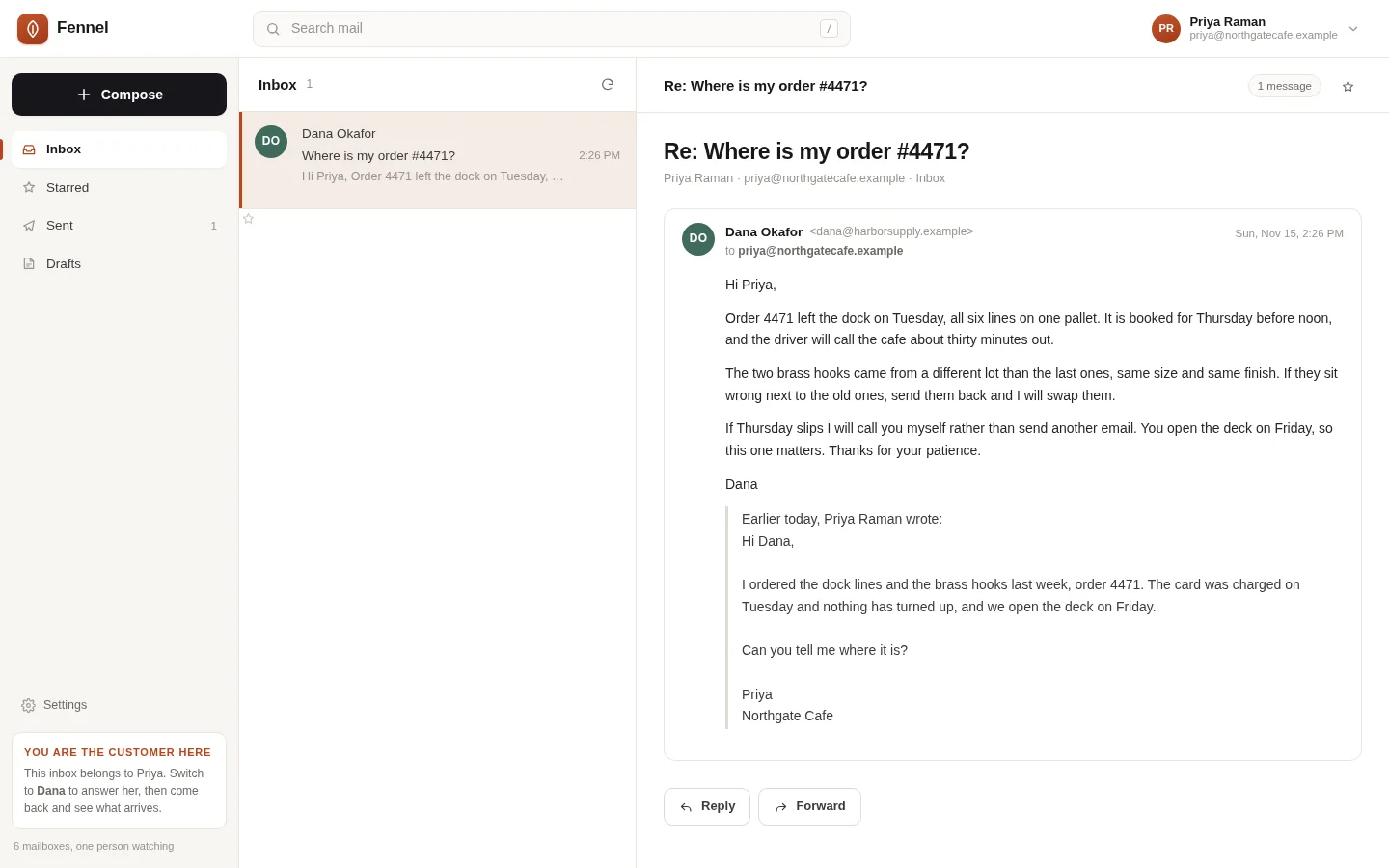
The customer's side of the same exchange.
When the answer needs a document
-
An invoice request goes looking
A request for a copy of invoice 1042 is not a sentence in a mailbox, it is three steps in QuickBooks: find the customer, find the invoice, pull the PDF. You can watch each step happen in the activity view.
Tap the screenshot to open it full size.
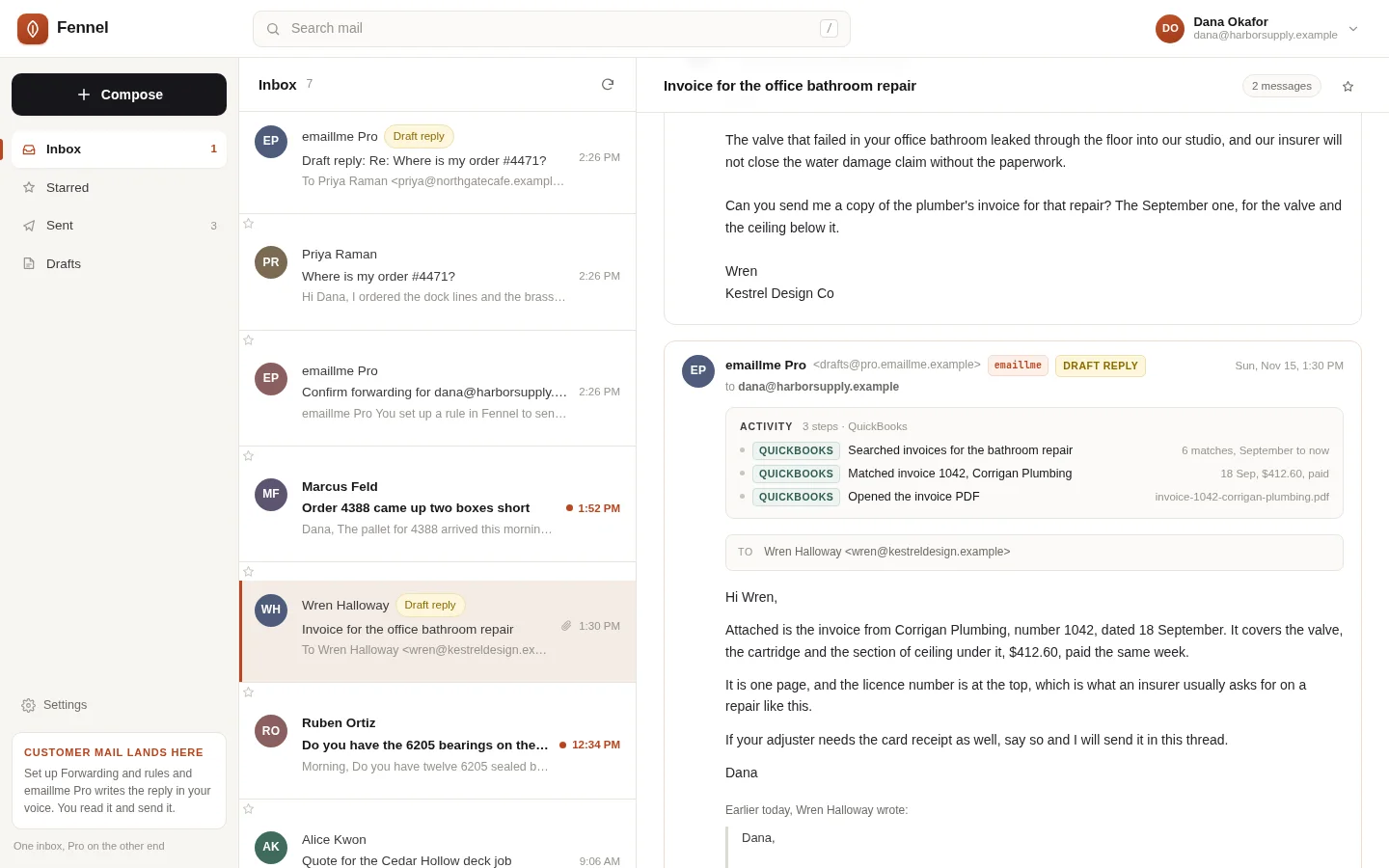
Each QuickBooks step listed as it runs. -
The PDF is on the draft
The reply comes back with the invoice attached and the total in the body, so the customer gets the document and the number in the same email.
Tap the screenshot to open it full size.
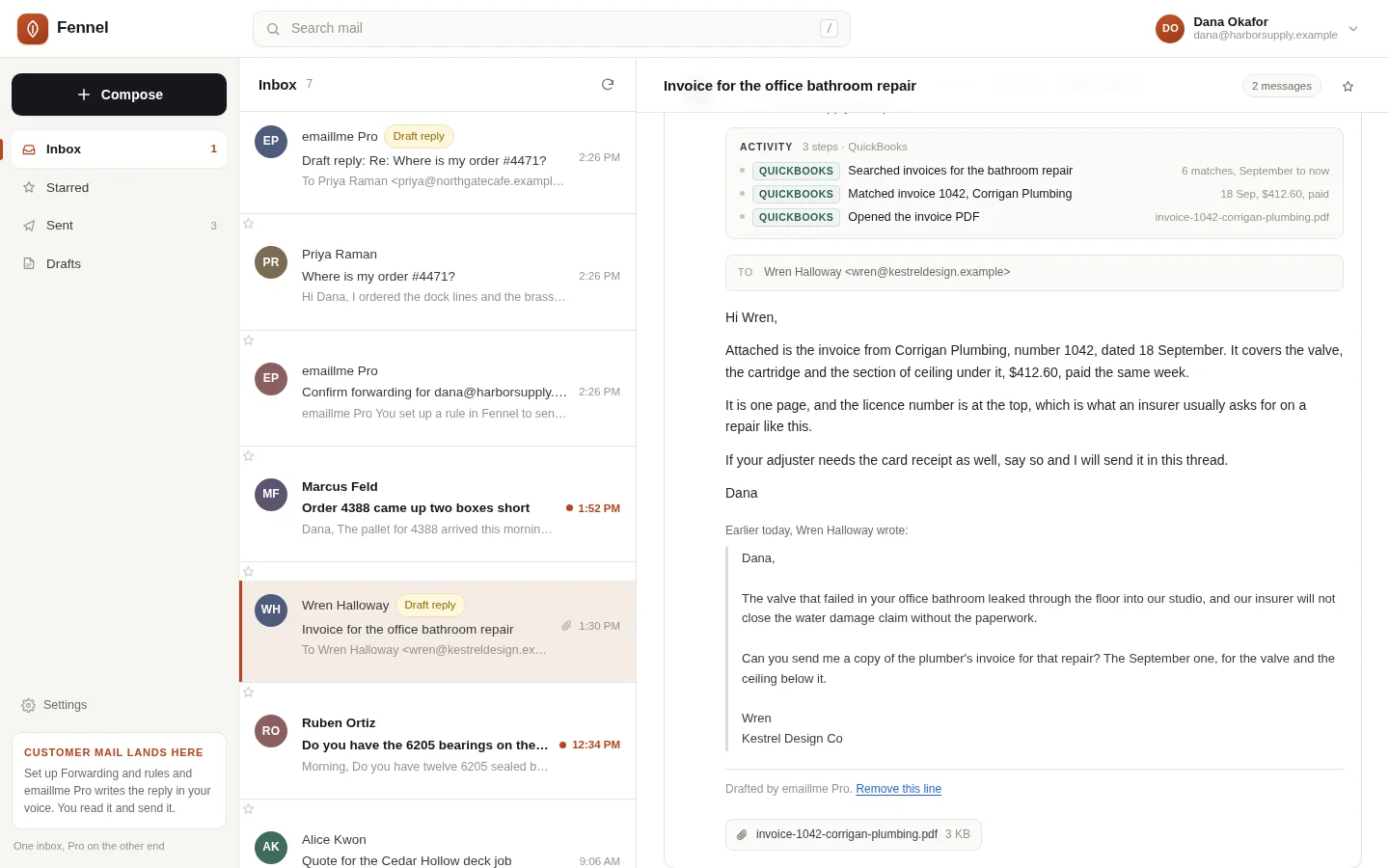
Attachment and total, in the reply you send. -
Forward it with the file intact
Forward the draft and the attachment travels with it. The customer opens one email and has the invoice.
Tap the screenshot to open it full size.
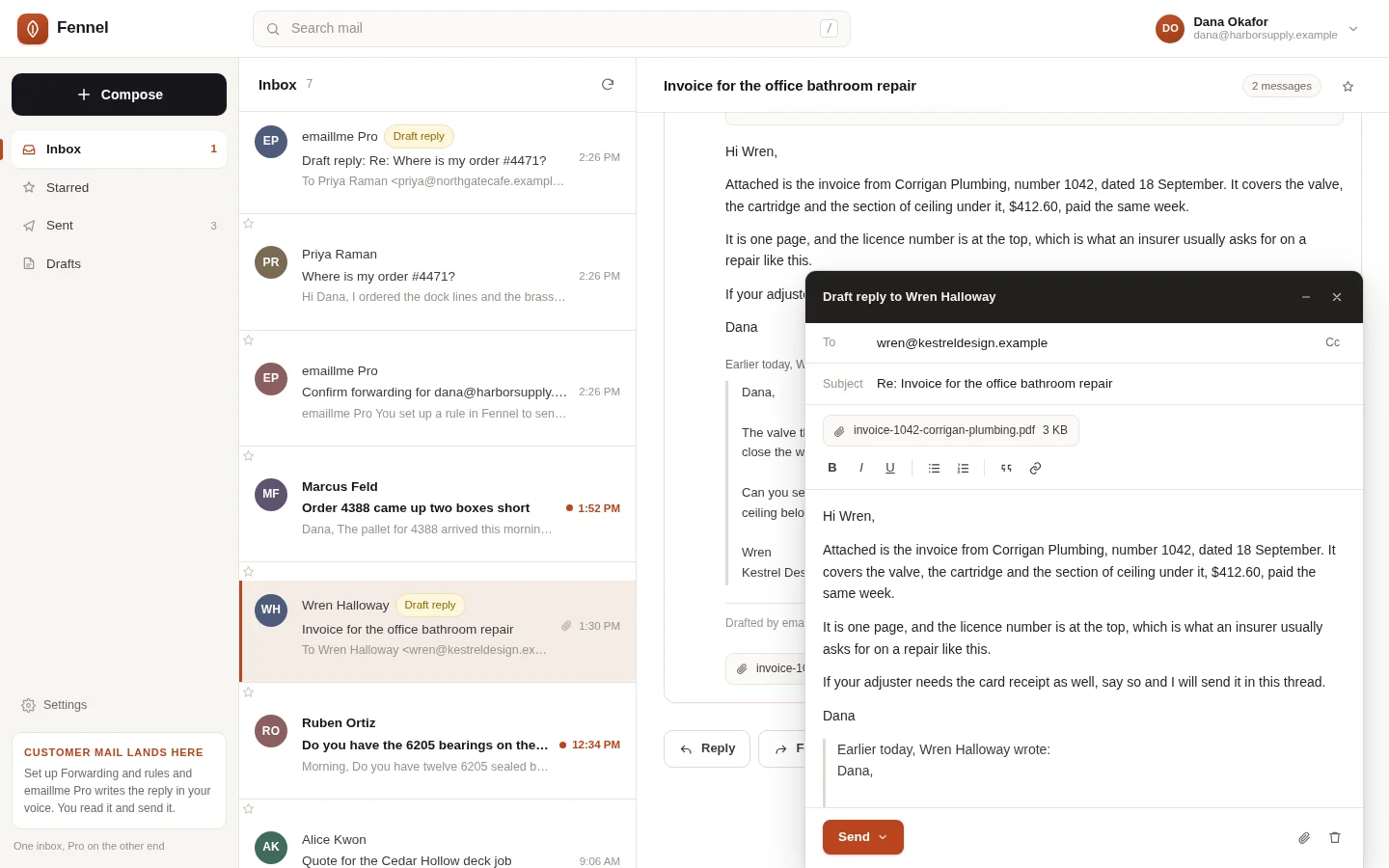
The PDF carried through to the send.
Drafts first, then auto-approve
Keep your first replies as drafts and read each one before you forward. When the answers match what your desk would have sent, turn on auto-approve and read them in Sent. Every reply is recorded either way, so you can see what went out and when.
Later you can turn on sending from your Pro address with Reply-To set to you, or connect Gmail or Outlook when you want mail to leave from the inbox you already manage.
Your data is encrypted, and no person ever reads it. Only your agent can open it. The AI companies behind your agent can't keep your data or use it to train their models.
Point Pro at the address that fills up
One forwarding rule, one confirmation, and the repetitive lookup-and-reply mail stops sitting in your queue while you do the work only you can do.
Every person, company and address in these recordings is made up, including Harbor Supply, Northgate Cafe and the QuickBooks invoice. The inbox is Fennel, a demo mail client built to show what an emaillme reply looks like when it lands.